Vik


SK Hynix to Build a New NAND Fab, Upgrade Existing DRAM Fab

SK Hynix to Build a New NAND Fab, Upgrade Existing DRAM Fab

SK Hynix on Thursday announced plans to build a new manufacturing facility to produce NAND flash memory in South Korea, and also upgrade its DRAM production plant in China in a bid to sustain its production capacities. Both projects will initially cost SK Hynix about $2.6 billion (₩3.15 trillion) and are expected to be completed in 2019-2020. Over that time, the company will also invest additional money in the expansion of DRAM and NAND production in South Korea.

The new fab will be located in Cheongju, South Korea, not far from the company’s existing M8, M11 and M12 manufacturing facilities. SK Hynix intends to start the design of the new fab in January and begin construction of the shell and the cleanroom space in August. The company hopes to complete the building in June 2019, and by then finalize decisions regarding equipment installation based on market conditions. If everything proceeds as planned, the new fab will process the first wafers already in late 2019 and will make a sizeable contribution to SK Hynix’s revenue by late 2020. SK Hynix intends to spend $2.08 billion (₩2.2 trillion) on construction alone (a little lower than the manufacturer spent on the building for its massive flagship M14 plant) and then will have to invest in production tools.

SK Hynix does not reveal details about production capacity of the upcoming fab and does not share the area of its cleanroom space. However, judging by the investment in the building itself, the memory producer is set to build another giant manufacturing facility. Today, SK Hynix processes around 300 thousand DRAM wafers (300mm) and 230 thousand NAND flash wafers (also 300mm) at its different fabs every month. A significant portion of SK Hynix’s memory is made at its M14 fab, which monthly output (used to make both DRAM and NAND) is getting closer to a target of 200 thousand wafer starts per month, but is not there yet. The new fab will further increase 300-mm production capacities owned by SK Hynix.

Overview of SK Hynix Manufacturing Capacities
  Icheon, South Korea Cheongju, South Korea Wuxi, China
M14 M10 M8 M11 M12 Future C2
Maximum
Production Capacity
(300-mm wafer starts per month)
<200K now

300K after upgrades

130K 50K 40K TBD 130K
Application DRAM Yes Yes Yes Yes Yes Yes
NAND 2D + 3D 2D + 3D 2D 2D 3D 2D
DDIC Yes
PMIC Yes
CIS Yes Yes
Wafer Size (mm) 300 200 300
2016 Q3
Total DRAM Output Today (300-mm wafer starts per month) 300K
Total NAND Ouput Today (300-mm wafer starts per month) 230K

At present, SK Hynix plans to use the new fab to manufacture only 3D NAND flash memory, but once it is ready, the company will use it according to market demands and will be able to produce both NAND and DRAM at the same production facility. However, the flexibility of semiconductor fabs going forward will be more constrained. Traditionally manufacturers used similar step-and-scan lithography systems from companies like ASML or Nikon to produce both DRAM and 2D NAND. While production of the two types of memory has many differences, it was possible to balance a fab’s output depending on market conditions. Meanwhile, the industry (and SK Hynix) is transiting to 3D NAND and its production relies not only on lithography but also (mostly) on deposition and etching. 3D NAND manufacturing requires chemical vapor deposition (CVD) machines and high aspect ratio etch tools in addition to traditional step-and-scan systems. Once installed, CVD and etching equipment take precious cleanroom space and thus fewer scanners can be installed there. As a result, switching a production line from 3D NAND to DRAM and vice-versa gets more complicated since different equipment has to be installed. On the other hand, the upper floor of SK Hynix’s M14 fab is set to be used for 3D NAND production starting from 2017, which means that it is possible to make DRAM and 3D NAND in the same building.

As NAND flash is moving into three-dimensional space, planar DRAM will keep evolving for a long time (nonetheless, architectures like HBM and other types of 3D DRAM are developing as well) and will require new manufacturing technologies. As fabrication processes get thinner, DRAM makers have to increase the use of multi-patterning techniques, which makes production cycles longer and effectively lowers output of fabs. In a bid to maintain its DRAM production capacities (and ultimately preserve its market share), SK Hynix plans to expand cleanroom space of its C2 fab in Wuxi, China, to install additional step-and-scan systems. The upgrade of the plant will cost SK Hynix approximately $790.68 million (₩950 billion). The company will start the work in July next year and plans to complete them in April 2019. The manufacturer does not disclose output of the production facility officially, but analysts from TrendForce believe that it represents roughly half of SK Hynix’s DRAM output and can process up to 130 thousand wafers (300mm) per month.

In the recent years, SK Hynix announced major plans to expand its existing semiconductor manufacturing capacities and build new ones. In total, the company intends to spend $38.28 billion (₩46 trillion) on fabs in the mid and long-term future, which is a serious commitment to the semiconductor industry in general.

Related Reading:

Samsung Updates Notebook 9: Kaby Lake, USB-C, Starts at 816 Grams

Samsung Updates Notebook 9: Kaby Lake, USB-C, Starts at 816 Grams

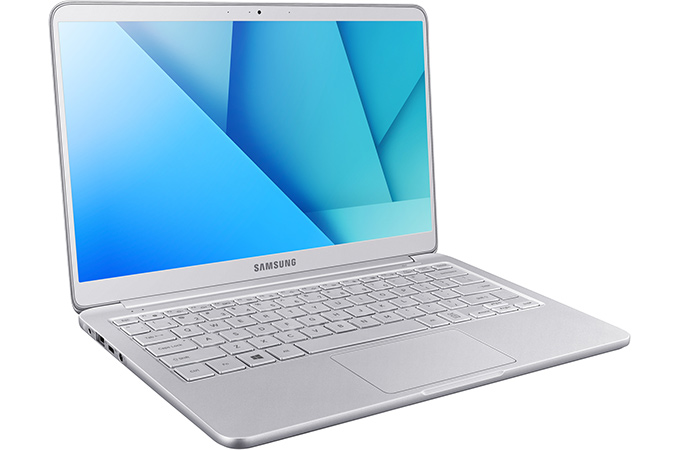
Samsung this week introduced new versions of its Notebook 9 ultra-thin and ultra-light laptops. The new mobile PCs are upgraded with Intel’s new Core i5/i7 Kaby Lake processors, new displays as well as a slightly different design that is slightly thicker, but is also slightly lighter. In fact, Samsung claims that its new Notebook 9 13” is the lightest laptop on the market at 816 grams (1.8 lbs), although some would claim that the 13.3-inch Lavie-Z holds that title starting at 720 grams (1.72 lbs).

Samsung positions its Notebook 9 machines for business travelers who have rather special requirements and who are willing to make certain tradeoffs. Apart from the new Intel Core i5/i7 processors featuring the Kaby Lake microarchitecture, the key improvement of the Notebook 9 are their new display panels with FHD resolution and a maximum brightness of 500 nits (their typical brightness is 350 nits), which is especially useful for those working outdoors. Quite naturally, at 500 nits the screens consume a lot of power, but the Notebook 9 laptops come batteries that have 30 Wh capacity, which is lower when compared to thin and light systems from Apple (41.4 Wh), Dell (60 Wh) and HP (38.4 Wh), but which helps to reduce weight (at the end of the day, not a lot of people have to work under direct sunlight). Samsung claims that the Notebook 7 can last seven hours on one charge, enough for office workers and even long-haul flights. As an added bonus, the Notebook 9’s monitors can display videos with HDR enhancements (the manufacturer does not reveal whether we are dealing with HDR10, but that is a likely situation).

The Notebook 9 laptops from Samsung can be equipped with up to 16 GB of dual-channel DDR4 memory, which is a rare option for contemporary ultra-thin laptops, many of which come with 8 GB of DRAM (but this may change in 2017). Meanwhile, when it comes to storage, Notebook 9’s SSDs top at 256 GB, but Samsung integrated a MicroSD card reader and hence road warriors may easily add storage space if needed. Connectivity-wise, Samsung’s Notebook 9 machines offer two USB Type-A, one USB Type-C as well as an HDMI port. For connectivity, a 2×2 802.11ac Wi-Fi + BT 4.1 wireless module is present.

The key selling points of the Samsung Notebook 9 range are their weight and dimensions: the 13” model is 13.9 mm thick, weighs 816 grams, whereas the 15” model is 14.9 mm thick, and weighs 984 grams. The laptops are thicker when compared to HP’s Spectre and Apple’s MacBook, but they are still thinner than Dell’s XPS 13. Moreover, when it comes to weight, the Notebook 9 are considerably lighter than (almost all) laptops in their class.

Comparison of Ultra-Thin Notebooks
  Samsung
Notebook 9 13″
Samsung
Notebook 9
15″
Dell XPS 13 HP Spectre Apple MacBook (2016)
Screen Resolution 1920×1080 with up to 500 cd/m² brightness and 95% sRGB color gamut 1920×1080 3200×1800 1920×1080 2304×1440
CPU SKU Core i5-7200U
Core i7-7500U
Core i7-7500U Core i3-7100U
Core i5-7200U
Core i7-7500U
Core i5-7200U
Core i7-7500U
Core m3-6Y30
Core m5-6Y54
Core m7-6Y75
Base 2.5 GHz 2.7 GHz 2.4 – 2.7 GHz 2.5 – 2.7 GHz 1.1 – 1.3 GHz
Boost 3.1 GHz 3.5 GHz 3.1 – 3.5 GHz 3.1 – 3.5 GHz 2.2 – 3.1 GHz
Graphics HD Graphics 620 (24 EUs) Intel HD Graphics 515 (24 EUs)
RAM 8-16 GB 8 GB 4-16 GB 8 GB 8 GB
  DDR4 LPDDR3
Storage 256 GB SSD
SATA
256 GB SSD
NVMe
128 GB SATA
256 GB NVMe
512 GB NVMe
1 TB NVMe
 
256 GB SSD
512 GB SSD
1 TB SSD

PCIe NVMe

256 GB SSD
512 GB SSD

PCIe 3.0 x2

Wi-Fi 2×2 802.11ac Wi-Fi
USB 3.1 × Type-C (unknown speed) 1 × Type-C 3 × Type-C
3.0 2 × Type-A 2 × Type-A × Type-C
2.0 × Type-A
Thunderbolt 1 × TB 3 2 × TB 3
HDMI 1
Card Reader MicroSD SD
Fingerprint Sensor Yes No
Other I/O Microphone, stereo speakers, audio jack
Battery 30 Wh 60 Wh 38 Wh 41.4 Wh
Thickness 13.9 mm 14.9 mm up to 15 mm 10.4 mm up to 13.2 mm
Weight 816 grams
1.8 lbs
984 grams 2.17 lbs 1.2 – 1.29 kg
2.7 – 2.9 lbs
1.10 kilograms
2.45 lbs
920 grams
2.03 lbs
Price ~$1000 ~$1200 $799+ $1100 / 256 GB
$1500 / 512 GB
$1800 / 1 TB
$1300 m3
$1600 m5
$1750 m7

Samsung did not announce MSRP or ETAs for its new Notebook 9 PCs, but it is logical to assume that the systems are set to arrive early in 2017. As for pricing, it is likely that the market segment that the manufacturer targets with the Notebook 9 family will not change with the arrival of new models, so we are looking at something like $1000+ for 13” models and something that starts at $1200 for 15” models.

In the meantime, for a limited period Amazon in the U.S. is selling out the previous-gen Samsung Notebook 9 13” (NP900X3L-K06US) for $749.99 and the Samsung Notebook 9 15” (NP900X5L-K02US) for $849.99.

Related Reading:

Samsung Updates Notebook 9: Kaby Lake, USB-C, Starts at 816 Grams

Samsung Updates Notebook 9: Kaby Lake, USB-C, Starts at 816 Grams

Samsung this week introduced new versions of its Notebook 9 ultra-thin and ultra-light laptops. The new mobile PCs are upgraded with Intel’s new Core i5/i7 Kaby Lake processors, new displays as well as a slightly different design that is slightly thicker, but is also slightly lighter. In fact, Samsung claims that its new Notebook 9 13” is the lightest laptop on the market at 816 grams (1.8 lbs), although some would claim that the 13.3-inch Lavie-Z holds that title starting at 720 grams (1.72 lbs).

Samsung positions its Notebook 9 machines for business travelers who have rather special requirements and who are willing to make certain tradeoffs. Apart from the new Intel Core i5/i7 processors featuring the Kaby Lake microarchitecture, the key improvement of the Notebook 9 are their new display panels with FHD resolution and a maximum brightness of 500 nits (their typical brightness is 350 nits), which is especially useful for those working outdoors. Quite naturally, at 500 nits the screens consume a lot of power, but the Notebook 9 laptops come batteries that have 30 Wh capacity, which is lower when compared to thin and light systems from Apple (41.4 Wh), Dell (60 Wh) and HP (38.4 Wh), but which helps to reduce weight (at the end of the day, not a lot of people have to work under direct sunlight). Samsung claims that the Notebook 7 can last seven hours on one charge, enough for office workers and even long-haul flights. As an added bonus, the Notebook 9’s monitors can display videos with HDR enhancements (the manufacturer does not reveal whether we are dealing with HDR10, but that is a likely situation).

The Notebook 9 laptops from Samsung can be equipped with up to 16 GB of dual-channel DDR4 memory, which is a rare option for contemporary ultra-thin laptops, many of which come with 8 GB of DRAM (but this may change in 2017). Meanwhile, when it comes to storage, Notebook 9’s SSDs top at 256 GB, but Samsung integrated a MicroSD card reader and hence road warriors may easily add storage space if needed. Connectivity-wise, Samsung’s Notebook 9 machines offer two USB Type-A, one USB Type-C as well as an HDMI port. For connectivity, a 2×2 802.11ac Wi-Fi + BT 4.1 wireless module is present.

The key selling points of the Samsung Notebook 9 range are their weight and dimensions: the 13” model is 13.9 mm thick, weighs 816 grams, whereas the 15” model is 14.9 mm thick, and weighs 984 grams. The laptops are thicker when compared to HP’s Spectre and Apple’s MacBook, but they are still thinner than Dell’s XPS 13. Moreover, when it comes to weight, the Notebook 9 are considerably lighter than (almost all) laptops in their class.

Comparison of Ultra-Thin Notebooks
  Samsung
Notebook 9 13″
Samsung
Notebook 9
15″
Dell XPS 13 HP Spectre Apple MacBook (2016)
Screen Resolution 1920×1080 with up to 500 cd/m² brightness and 95% sRGB color gamut 1920×1080 3200×1800 1920×1080 2304×1440
CPU SKU Core i5-7200U
Core i7-7500U
Core i7-7500U Core i3-7100U
Core i5-7200U
Core i7-7500U
Core i5-7200U
Core i7-7500U
Core m3-6Y30
Core m5-6Y54
Core m7-6Y75
Base 2.5 GHz 2.7 GHz 2.4 – 2.7 GHz 2.5 – 2.7 GHz 1.1 – 1.3 GHz
Boost 3.1 GHz 3.5 GHz 3.1 – 3.5 GHz 3.1 – 3.5 GHz 2.2 – 3.1 GHz
Graphics HD Graphics 620 (24 EUs) Intel HD Graphics 515 (24 EUs)
RAM 8-16 GB 8 GB 4-16 GB 8 GB 8 GB
  DDR4 LPDDR3
Storage 256 GB SSD
SATA
256 GB SSD
NVMe
128 GB SATA
256 GB NVMe
512 GB NVMe
1 TB NVMe
 
256 GB SSD
512 GB SSD
1 TB SSD

PCIe NVMe

256 GB SSD
512 GB SSD

PCIe 3.0 x2

Wi-Fi 2×2 802.11ac Wi-Fi
USB 3.1 × Type-C (unknown speed) 1 × Type-C 3 × Type-C
3.0 2 × Type-A 2 × Type-A × Type-C
2.0 × Type-A
Thunderbolt 1 × TB 3 2 × TB 3
HDMI 1
Card Reader MicroSD SD
Fingerprint Sensor Yes No
Other I/O Microphone, stereo speakers, audio jack
Battery 30 Wh 60 Wh 38 Wh 41.4 Wh
Thickness 13.9 mm 14.9 mm up to 15 mm 10.4 mm up to 13.2 mm
Weight 816 grams
1.8 lbs
984 grams 2.17 lbs 1.2 – 1.29 kg
2.7 – 2.9 lbs
1.10 kilograms
2.45 lbs
920 grams
2.03 lbs
Price ~$1000 ~$1200 $799+ $1100 / 256 GB
$1500 / 512 GB
$1800 / 1 TB
$1300 m3
$1600 m5
$1750 m7

Samsung did not announce MSRP or ETAs for its new Notebook 9 PCs, but it is logical to assume that the systems are set to arrive early in 2017. As for pricing, it is likely that the market segment that the manufacturer targets with the Notebook 9 family will not change with the arrival of new models, so we are looking at something like $1000+ for 13” models and something that starts at $1200 for 15” models.

In the meantime, for a limited period Amazon in the U.S. is selling out the previous-gen Samsung Notebook 9 13” (NP900X3L-K06US) for $749.99 and the Samsung Notebook 9 15” (NP900X5L-K02US) for $849.99.

Related Reading:

Synology, Seagate, and Amcrest's 2016 Surveillance Bundle Capsule Review

Synology, Seagate, and Amcrest’s 2016 Surveillance Bundle Capsule Review

Recent technological advancements have led to a number of cost-effective video surveillance solutions. IP cameras (devices that can capture and stream video over an IP network while keeping latency low) that target home users have been around for the better part of a decade now. They started gaining more traction in the market after the user experience was simplified with the help of cloud-only products from Dropcam and other vendors. Such products have ease of use as their primary selling point. The disadvantage to consumers is their reliance on an always-active Internet connection and the holding of captured footage hostage in the cloud.

Consumers have begun to realize that there are advantages to rolling up their own surveillance system with multiple cameras and a dedicated network video recorder (NVR) or NAS to store the recorded video. Some of the plus points include

  • Full control over recorded video without the need to pay recurring fees
  • Ability to keep recording video even without Internet access
  • Minimizing Internet traffic from surveillance cameras (becoming important due to the rise in imposition of data caps on even wired plans)

There are some costs to doing this, though. Ease of use is definitely impacted. In particular, there are some impediments in setting up access to the surveillance feeds from an external network. Unless an off-the-shelf surveillance system (bundle of a number of IP cameras, a NVR, and pre-installed hard drives) is being bought, there is also a challenge in figuring out the right components to buy. The essential parts of a surveillance bundle are the IP cameras, the NAS, and the hard drives to use in the NAS. While the hardware components need to be set-and-forget, the software side is always a work-in-progress. It is, therefore, great to see that NAS vendors have chosen surveillance support as an important value-addition in their firmware.

Synology has put in quite a bit of effort into their Surveillance Station package. With the launch of Surveillance Station 7.2, they believe that that it is the ideal time to make a push in the home consumer space. Towards this, they have partnered with Seagate and Amcrest to make the choice of components for a home surveillance system easier. There are two bundles with the following configurations.

Synology, Seagate, and Amcrest 2016 Surveillance Bundles
  Bundle 1 Bundle 2
IP Cameras 1x Amcrest IP2M-841W ProHD 1080p Wi-Fi 2x Amcrest IP2M-841B ProHD 1080p Wi-Fi
NAS 1x Synology DS216j 2-bay NAS 1x Synology DS416j 4-bay NAS
Hard Drives 2x Seagate IronWolf 2TB NAS Hard Drive (ST2000VN004) 4x Seagate IronWolf 2TB NAS Hard Drive (ST2000VN004)
Newegg Bundle Price $400 $750
Amazon Standalone Price $88 + $170 + $180 = $438 $180 + $289 + $360 = $829

The Newegg combo does provide better value compared to shopping around for the components separately.

Setup and Usage Experience

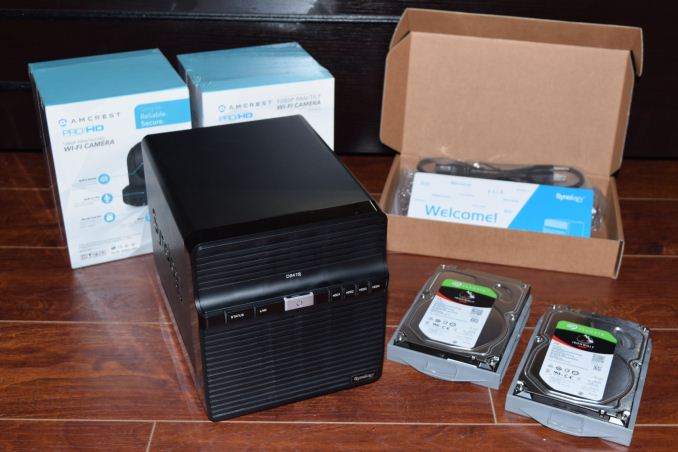
Synology provided us with a review kit closely matching the higher-end bundle with two Amcrest IP2M-841B IP cameras, a Synology DS416j 4-bay NAS and two Seagate IronWolf 3TB NAS hard drives (ST3000VN004). Our first task was to set up the Amcrest cameras. The cameras support 1080p30 capture, and have both wired and wireless network interfaces. They are indoor models with Pan-Tilt-Zoom (PTZ) capability. The power cord is 3m long, providing a bit of flexibility in camera placement relative to the power socket. There is also an ABS plastic mount to orient the camera as needed (in the case that placement on a flat surface is not possible). The model also has two-way audio support.

The ProHD camera comes with a QR code on the bottom that can be scanned with a mobile device using the free Amcrest View mobile app for easy setup. However, in our setup process behind a double NAT, this ‘easy setup’ failed. Connecting via the wired network interface and using a browser to access the web UI of the camera for further configuration was much more robust. Once the Wi-Fi credentials were set up inside the camera, I could move them to the desired location. The Amcrest web UI is passable, but, not particularly user-friendly. Another issue I had with the one of the cameras was spotty Wi-Fi reception in one of my desired locations. Given the single-band nature of the WLAN connection and the susceptibility of the 2.4 GHz band to interference, I wasn’t surprised. For continuing the evaluation, I shifted the IP camera to another location. For a ‘Pro’ camera, it definitely needs dual-band (2.4 GHz and 5 GHz) support. In any case, once I had the cameras up and running with a good network connection, they did their job well.

We have been reviewing Synology’s NAS units for quite some time now. Their Disk Station Manager (DSM) OS is one of the most user-friendly NAS operating systems in the market, and the user-experience with the setup process using the supplied hard drives was smooth. One must note here that the DS416j doesn’t support hot-swap. In our review kit, the hard-drives were pre-installed in the NAS. We are not sure about the Newegg bundle, though. If the hard drives come in a separate package, it is likely that one would spend more time fastening the drives to the bays and the NAS frame compared to actually configuring the DSM OS. It must also be noted that Surveillance Station is a separate package that needs to be installed from the Package Center in the DSM desktop UI.

The rest of this section is a reproduction of our coverage of Surveillance Station 7.2 in the first part of our exploration of value additions in commercial NAS operating systems.

Synology has been devoting a lot of attention to the NVR features of the DSM OS in the last few years. It shows clearly, as Surveillance Station has moved from a rather plain UI to its own desktop-inspired UI similar to the main DSM. These updates have come with Surveillance Station 7.2, and Synology is justifiably proud of their efforts. Synology provides two free IP camera licenses with each NAS.
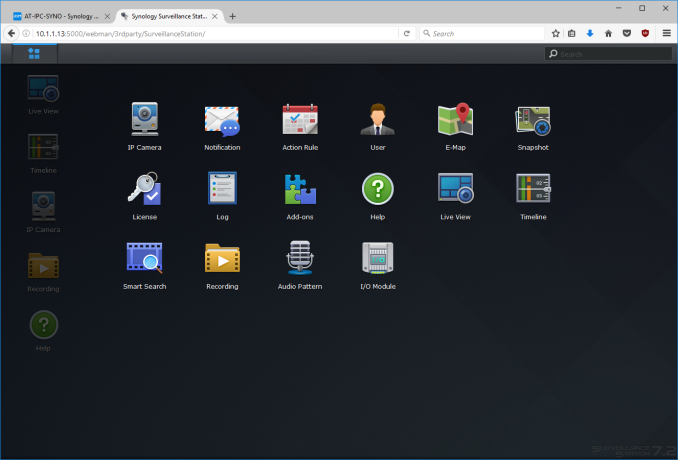
The camera addition wizard is simple and straightforward, though network configuration issues might prevent automatic recognition of cameras. In our case, it was simpler to just set up the cameras manually, as we had the IP address and login credentials in hand. After the initial set-up, the editing option allows users to finely tune the settings for the stream to be recorded (resolution, frame rate, image quality etc.). Keyframe intervals can also be set (though that depends on the camera’s capabilities also). Recording settings such as schedules, duration of each video and limits for archives (space as well as number of days) can also be configured.

Live view settings (whether the stream comes from the NAS or direct from the camera, multicast settings etc.) can also be edited on a per-camera basis. Event detection can be configured with the detection source being the camera itself, or the NAS. Various other camera parameters can also be altered from the settings section.

Notifications are handled with settings on the DSM side. E-mail, SMS, and push services are supported. The list of events is quite comprehensive compared to what we have seen from other vendors. These events can also be set to trigger actions such as automatic panning or streaming particular audio files (a barking dog, for example) to the IP camera’s speakers. These action rules can also be set to operate on specific schedules.

Similar to other NVR packages discussed in this section, Surveillance Station 7.2 also allows e-maps (for ease of understanding camera locations). Detailed logs are also vailable for information regarding camera status as well as changes to the Surveillance Station settings.

Despite Surveillance Station itself being an add-on to DSM, it also has its own plug-in architecture. This is particularly attractive to users who don’t need to be confused with functionality they probably don’t need. By default, the Device Pack add-on is pre-installed. This allows Synology to add cameras to the compatibility list without the need to update Surveillance Station itself. Other available add-ons include a central management system (for multi-site NVR deployments), VisualStation (for display output of surveillance view and control on certain NAS units with video outputs), Joystick (alternative to a mouse for PTZ control) etc.

The live view and playback capabilities of Synology’s Surveillance Station are very user-friendly. Unlike Asustor and QNAP, a separate Windows program is not needed, but, a NPAPI plugin needs to be installed. Unfortunately, this means that certain browser / OS combinations are out of luck. It appears that Synology is moving towards a desktop client similar to QNAP and Asustor, though we are not sure that is a good approach. Native browser capabilities with HTML5 should also remain an option so that the current user interface can be maintained without the need of a plugin. However, one must definitely give credit to Synology for having moved on from a Java plugin.

The live view interface offers PTZ (pan-tilt-zoom) capabilities, and also has alert management settings on a per-camera basis. The Timeline view offers playback capabilities and can easily indicate periods of activity to the user. There is also support for a ‘Smart Search’ in the Live View that can be used to track regions of interest in the feed. The Recordings option in the desktop UI presents a list of files that have been finalized or currently being recorded to. These files can be played back from the web UI. They can also be downloaded to the client, if needed.

On the whole, Synology’s Surveillance Station 7.2 is one of the best native NVR packages in the commercial NAS OS space. We would like Synology to focus on a fully browser-based cross-platform solution moving forward in addition to their current plans for a dedicated desktop program in the upcoming Surveillance Station release.

Concluding Remarks

The surveillance bundles created by the partnership between Synology, Seagate, and Amcrest provide an excellent platform for home users interested in a solution without recurring monthly fees. Compared to dedicated solutions, the bundles offer a lot of flexibility – particularly from the NAS side. The Synology -j series NAS units are value-centric solutions perfect for families who want to just back up their PCs and smartphone content and don’t require fancy features such as dual LAN ports or hot-swap capabilities. The Surveillance Station package is one of the best offerings in this market segment, as evident from our recent exploration of the value additions in NAS units. The Seagate drives get the job done silently in the background. Given the surveillance focus, SkyHawk drives could have been a better choice, but, IronWolf is acceptable given that the NAS in the bundle is going to be used for other purposes also. Consumers can rest assured that the firmware in the drives are optimized for general NAS usage.

The weak link in the bundle are the Amcrest cameras. My issues are with the setup process – the claims that the camera can be set up by just scanning a QR code and using the cloud couldn’t be verified in my particular network setup. However, as someone who is more tech-savvy compared to the average consumer, I had no trouble configuring it after setting the camera up with a wired connection. Once the Wi-Fi configuration was completed, I could move it to the desired location. The ‘Pro’ claims of the camera is also very misleading. While the Pan-Tilt-Zoom (PTZ) capabilities are welcome, the fact that the WLAN chipset in it is only single-band (2.4 GHz) is very disappointing. In Amcrest’s defense, the IP2M-841 is often on sale for less than $100, and consumers have to realize that they get what they pay for. That apart, there is nothing wrong with the video quality or performance once the camera setup is done and the NAS has started recording the video.

In conclusion, consumers thinking about setting up a home surveillance system with 1 or 2 IP cameras should definitely consider the bundles offered by Synology, Seagate, and Amcrest. The deals are particularly good if the consumer currently doesn’t have a NAS at home – the bundle can also serve as a very good starting point to explore the world of commercial off-the-shelf NAS units and their private cloud features.


 

Synology, Seagate, and Amcrest's 2016 Surveillance Bundle Capsule Review

Synology, Seagate, and Amcrest’s 2016 Surveillance Bundle Capsule Review

Recent technological advancements have led to a number of cost-effective video surveillance solutions. IP cameras (devices that can capture and stream video over an IP network while keeping latency low) that target home users have been around for the better part of a decade now. They started gaining more traction in the market after the user experience was simplified with the help of cloud-only products from Dropcam and other vendors. Such products have ease of use as their primary selling point. The disadvantage to consumers is their reliance on an always-active Internet connection and the holding of captured footage hostage in the cloud.

Consumers have begun to realize that there are advantages to rolling up their own surveillance system with multiple cameras and a dedicated network video recorder (NVR) or NAS to store the recorded video. Some of the plus points include

  • Full control over recorded video without the need to pay recurring fees
  • Ability to keep recording video even without Internet access
  • Minimizing Internet traffic from surveillance cameras (becoming important due to the rise in imposition of data caps on even wired plans)

There are some costs to doing this, though. Ease of use is definitely impacted. In particular, there are some impediments in setting up access to the surveillance feeds from an external network. Unless an off-the-shelf surveillance system (bundle of a number of IP cameras, a NVR, and pre-installed hard drives) is being bought, there is also a challenge in figuring out the right components to buy. The essential parts of a surveillance bundle are the IP cameras, the NAS, and the hard drives to use in the NAS. While the hardware components need to be set-and-forget, the software side is always a work-in-progress. It is, therefore, great to see that NAS vendors have chosen surveillance support as an important value-addition in their firmware.

Synology has put in quite a bit of effort into their Surveillance Station package. With the launch of Surveillance Station 7.2, they believe that that it is the ideal time to make a push in the home consumer space. Towards this, they have partnered with Seagate and Amcrest to make the choice of components for a home surveillance system easier. There are two bundles with the following configurations.

Synology, Seagate, and Amcrest 2016 Surveillance Bundles
  Bundle 1 Bundle 2
IP Cameras 1x Amcrest IP2M-841W ProHD 1080p Wi-Fi 2x Amcrest IP2M-841B ProHD 1080p Wi-Fi
NAS 1x Synology DS216j 2-bay NAS 1x Synology DS416j 4-bay NAS
Hard Drives 2x Seagate IronWolf 2TB NAS Hard Drive (ST2000VN004) 4x Seagate IronWolf 2TB NAS Hard Drive (ST2000VN004)
Newegg Bundle Price $400 $750
Amazon Standalone Price $88 + $170 + $180 = $438 $180 + $289 + $360 = $829

The Newegg combo does provide better value compared to shopping around for the components separately.

Setup and Usage Experience

Synology provided us with a review kit closely matching the higher-end bundle with two Amcrest IP2M-841B IP cameras, a Synology DS416j 4-bay NAS and two Seagate IronWolf 3TB NAS hard drives (ST3000VN004). Our first task was to set up the Amcrest cameras. The cameras support 1080p30 capture, and have both wired and wireless network interfaces. They are indoor models with Pan-Tilt-Zoom (PTZ) capability. The power cord is 3m long, providing a bit of flexibility in camera placement relative to the power socket. There is also an ABS plastic mount to orient the camera as needed (in the case that placement on a flat surface is not possible). The model also has two-way audio support.

The ProHD camera comes with a QR code on the bottom that can be scanned with a mobile device using the free Amcrest View mobile app for easy setup. However, in our setup process behind a double NAT, this ‘easy setup’ failed. Connecting via the wired network interface and using a browser to access the web UI of the camera for further configuration was much more robust. Once the Wi-Fi credentials were set up inside the camera, I could move them to the desired location. The Amcrest web UI is passable, but, not particularly user-friendly. Another issue I had with the one of the cameras was spotty Wi-Fi reception in one of my desired locations. Given the single-band nature of the WLAN connection and the susceptibility of the 2.4 GHz band to interference, I wasn’t surprised. For continuing the evaluation, I shifted the IP camera to another location. For a ‘Pro’ camera, it definitely needs dual-band (2.4 GHz and 5 GHz) support. In any case, once I had the cameras up and running with a good network connection, they did their job well.

We have been reviewing Synology’s NAS units for quite some time now. Their Disk Station Manager (DSM) OS is one of the most user-friendly NAS operating systems in the market, and the user-experience with the setup process using the supplied hard drives was smooth. One must note here that the DS416j doesn’t support hot-swap. In our review kit, the hard-drives were pre-installed in the NAS. We are not sure about the Newegg bundle, though. If the hard drives come in a separate package, it is likely that one would spend more time fastening the drives to the bays and the NAS frame compared to actually configuring the DSM OS. It must also be noted that Surveillance Station is a separate package that needs to be installed from the Package Center in the DSM desktop UI.

The rest of this section is a reproduction of our coverage of Surveillance Station 7.2 in the first part of our exploration of value additions in commercial NAS operating systems.

Synology has been devoting a lot of attention to the NVR features of the DSM OS in the last few years. It shows clearly, as Surveillance Station has moved from a rather plain UI to its own desktop-inspired UI similar to the main DSM. These updates have come with Surveillance Station 7.2, and Synology is justifiably proud of their efforts. Synology provides two free IP camera licenses with each NAS.

The camera addition wizard is simple and straightforward, though network configuration issues might prevent automatic recognition of cameras. In our case, it was simpler to just set up the cameras manually, as we had the IP address and login credentials in hand. After the initial set-up, the editing option allows users to finely tune the settings for the stream to be recorded (resolution, frame rate, image quality etc.). Keyframe intervals can also be set (though that depends on the camera’s capabilities also). Recording settings such as schedules, duration of each video and limits for archives (space as well as number of days) can also be configured.

Live view settings (whether the stream comes from the NAS or direct from the camera, multicast settings etc.) can also be edited on a per-camera basis. Event detection can be configured with the detection source being the camera itself, or the NAS. Various other camera parameters can also be altered from the settings section.

Notifications are handled with settings on the DSM side. E-mail, SMS, and push services are supported. The list of events is quite comprehensive compared to what we have seen from other vendors. These events can also be set to trigger actions such as automatic panning or streaming particular audio files (a barking dog, for example) to the IP camera’s speakers. These action rules can also be set to operate on specific schedules.

Similar to other NVR packages discussed in this section, Surveillance Station 7.2 also allows e-maps (for ease of understanding camera locations). Detailed logs are also vailable for information regarding camera status as well as changes to the Surveillance Station settings.

Despite Surveillance Station itself being an add-on to DSM, it also has its own plug-in architecture. This is particularly attractive to users who don’t need to be confused with functionality they probably don’t need. By default, the Device Pack add-on is pre-installed. This allows Synology to add cameras to the compatibility list without the need to update Surveillance Station itself. Other available add-ons include a central management system (for multi-site NVR deployments), VisualStation (for display output of surveillance view and control on certain NAS units with video outputs), Joystick (alternative to a mouse for PTZ control) etc.

The live view and playback capabilities of Synology’s Surveillance Station are very user-friendly. Unlike Asustor and QNAP, a separate Windows program is not needed, but, a NPAPI plugin needs to be installed. Unfortunately, this means that certain browser / OS combinations are out of luck. It appears that Synology is moving towards a desktop client similar to QNAP and Asustor, though we are not sure that is a good approach. Native browser capabilities with HTML5 should also remain an option so that the current user interface can be maintained without the need of a plugin. However, one must definitely give credit to Synology for having moved on from a Java plugin.

The live view interface offers PTZ (pan-tilt-zoom) capabilities, and also has alert management settings on a per-camera basis. The Timeline view offers playback capabilities and can easily indicate periods of activity to the user. There is also support for a ‘Smart Search’ in the Live View that can be used to track regions of interest in the feed. The Recordings option in the desktop UI presents a list of files that have been finalized or currently being recorded to. These files can be played back from the web UI. They can also be downloaded to the client, if needed.

On the whole, Synology’s Surveillance Station 7.2 is one of the best native NVR packages in the commercial NAS OS space. We would like Synology to focus on a fully browser-based cross-platform solution moving forward in addition to their current plans for a dedicated desktop program in the upcoming Surveillance Station release.

Concluding Remarks

The surveillance bundles created by the partnership between Synology, Seagate, and Amcrest provide an excellent platform for home users interested in a solution without recurring monthly fees. Compared to dedicated solutions, the bundles offer a lot of flexibility – particularly from the NAS side. The Synology -j series NAS units are value-centric solutions perfect for families who want to just back up their PCs and smartphone content and don’t require fancy features such as dual LAN ports or hot-swap capabilities. The Surveillance Station package is one of the best offerings in this market segment, as evident from our recent exploration of the value additions in NAS units. The Seagate drives get the job done silently in the background. Given the surveillance focus, SkyHawk drives could have been a better choice, but, IronWolf is acceptable given that the NAS in the bundle is going to be used for other purposes also. Consumers can rest assured that the firmware in the drives are optimized for general NAS usage.

The weak link in the bundle are the Amcrest cameras. My issues are with the setup process – the claims that the camera can be set up by just scanning a QR code and using the cloud couldn’t be verified in my particular network setup. However, as someone who is more tech-savvy compared to the average consumer, I had no trouble configuring it after setting the camera up with a wired connection. Once the Wi-Fi configuration was completed, I could move it to the desired location. The ‘Pro’ claims of the camera is also very misleading. While the Pan-Tilt-Zoom (PTZ) capabilities are welcome, the fact that the WLAN chipset in it is only single-band (2.4 GHz) is very disappointing. In Amcrest’s defense, the IP2M-841 is often on sale for less than $100, and consumers have to realize that they get what they pay for. That apart, there is nothing wrong with the video quality or performance once the camera setup is done and the NAS has started recording the video.

In conclusion, consumers thinking about setting up a home surveillance system with 1 or 2 IP cameras should definitely consider the bundles offered by Synology, Seagate, and Amcrest. The deals are particularly good if the consumer currently doesn’t have a NAS at home – the bundle can also serve as a very good starting point to explore the world of commercial off-the-shelf NAS units and their private cloud features.